Appearance
Database Triggers
The Query Builder allows you to write database triggers, provided you have the necessary credentials. To do so, type a forward slash (/) on an empty line after your CREATE TRIGGER command, as shown in the example below. If you are using an ISP-hosted environment, your privileges may be limited. Two examples of database trigger usage are provided below.
✨ Example of a Database Trigger That Prevents Updates on Table dept
sql
CREATE TRIGGER prevent_updates_on_dept BEFORE UPDATE ON dept
	FOR EACH ROW
	BEGIN
		SIGNAL SQLSTATE '45000' SET MESSAGE_TEXT = 'You are not allowed to update this table';
	END;
/
📌 Error Handling
- When a user attempts to update a row in the
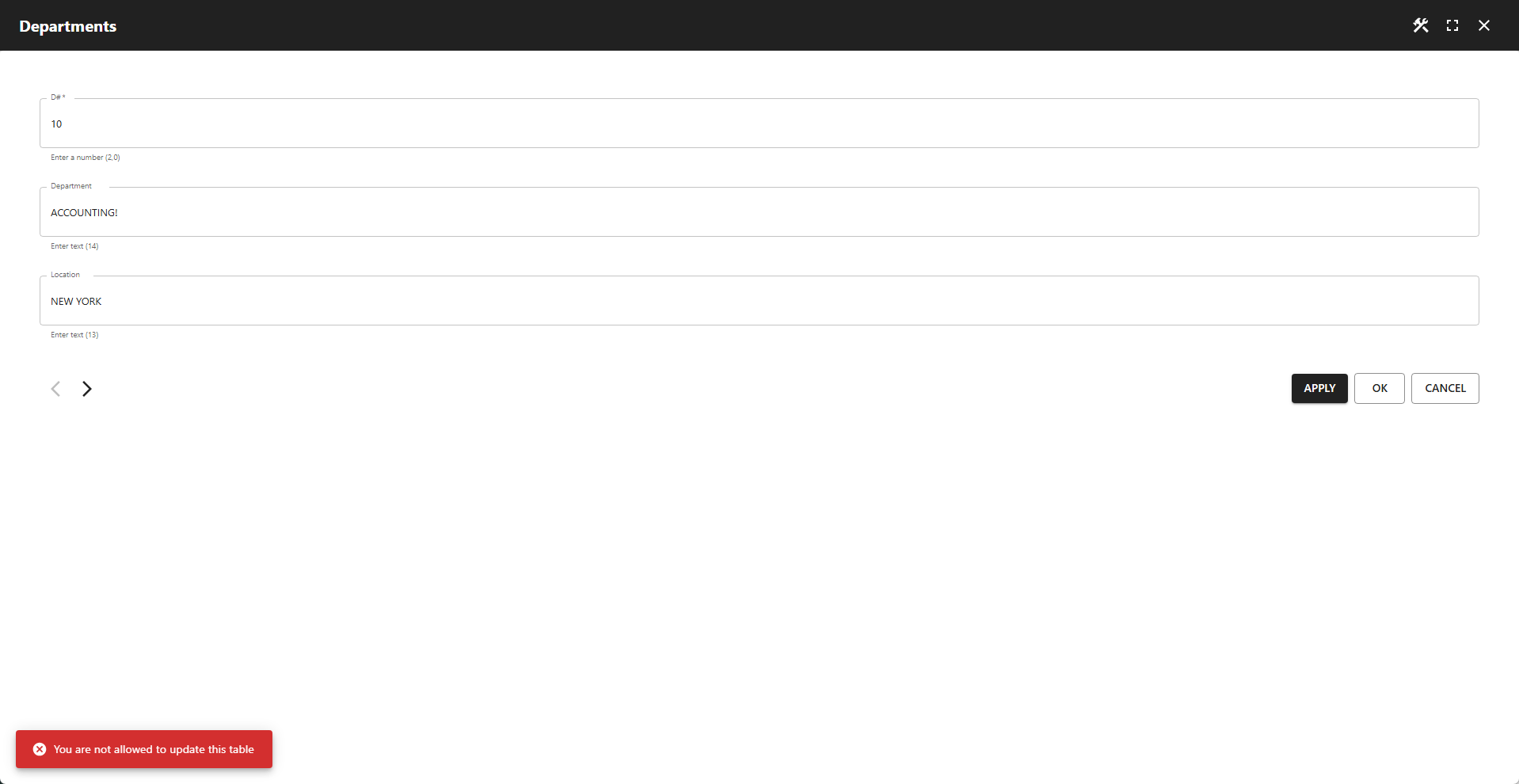
depttable with this trigger enabled, the trigger prevents the update and returns the error message: “You are not allowed to update this table,” as shown in the screenshot below. You can customize this error message to anything you prefer. - The App Builder handles these errors natively, so no additional configuration is required.
✨ Adding Timestamps Using Database Triggers
The following table includes two timestamp columns:
- The
addedcolumn stores the current timestamp when a record is inserted. - The
updatedcolumn stores the current timestamp when a record is updated.
sql
CREATE TABLE `audit` (
  `id` int(11) NOT NULL AUTO_INCREMENT PRIMARY KEY,
  `first_name` varchar(50) NOT NULL,
  `last_name` varchar(50) NOT NULL,
  `email` varchar(100) NOT NULL,
  `birthdate` date NOT NULL,
  `added` timestamp NOT NULL DEFAULT CURRENT_TIMESTAMP(),
  `updated` timestamp NOT NULL DEFAULT CURRENT_TIMESTAMP() ON UPDATE CURRENT_TIMESTAMP()
) ENGINE=InnoDB DEFAULT CHARSET=latin1 COLLATE=latin1_swedish_ci
/
The following database triggers handle the timestamp updates on insert and update operations:
sql
CREATE TRIGGER before_insert_audit BEFORE INSERT ON audit
	FOR EACH ROW
	BEGIN
		SET NEW.added = NOW();
	END;
/
sql
CREATE TRIGGER before_update_audit BEFORE UPDATE ON audit
	FOR EACH ROW
	BEGIN
		SET NEW.updated = NOW();
	END;
/
📌 Usage in Apps
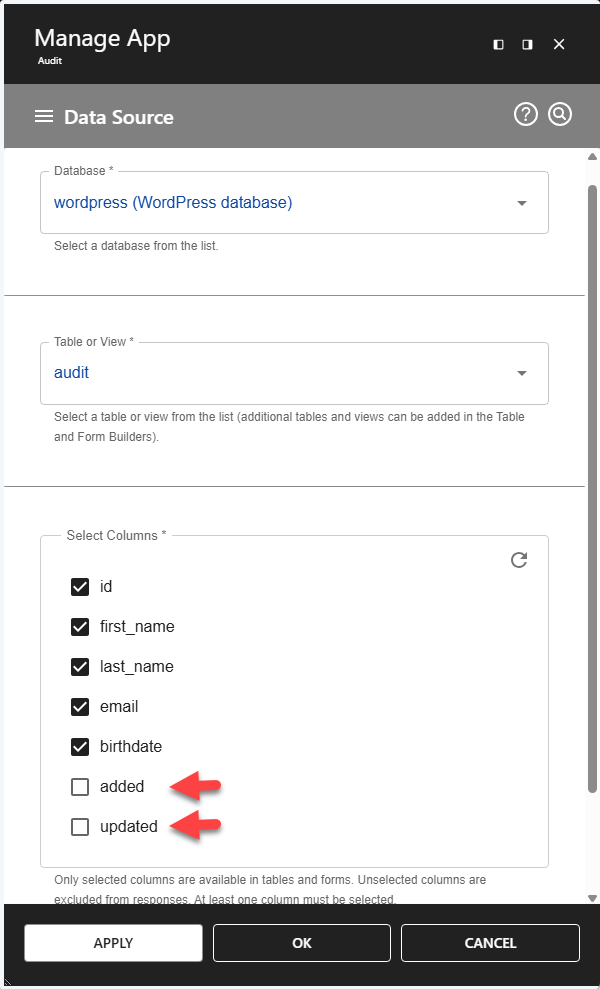
Simply deselect the added and updated columns in the App Wizard, as shown in the screenshot below. That's all you need to do!